
Remove Formatting from Text
Remove formatting from text you paste from Word, Google Docs, web pages, email or ChatGPT — clean plain text in one click, with paragraphs and line breaks preserved.
Tip: Drop a .txt / .md / .html / .csv file (5 MB max). For Word or Google Docs, copy and paste directly.
 Runs 100% in your browser
 Nothing is uploaded
 No sign-up, no limits
How Format Remover Cleans Your Text
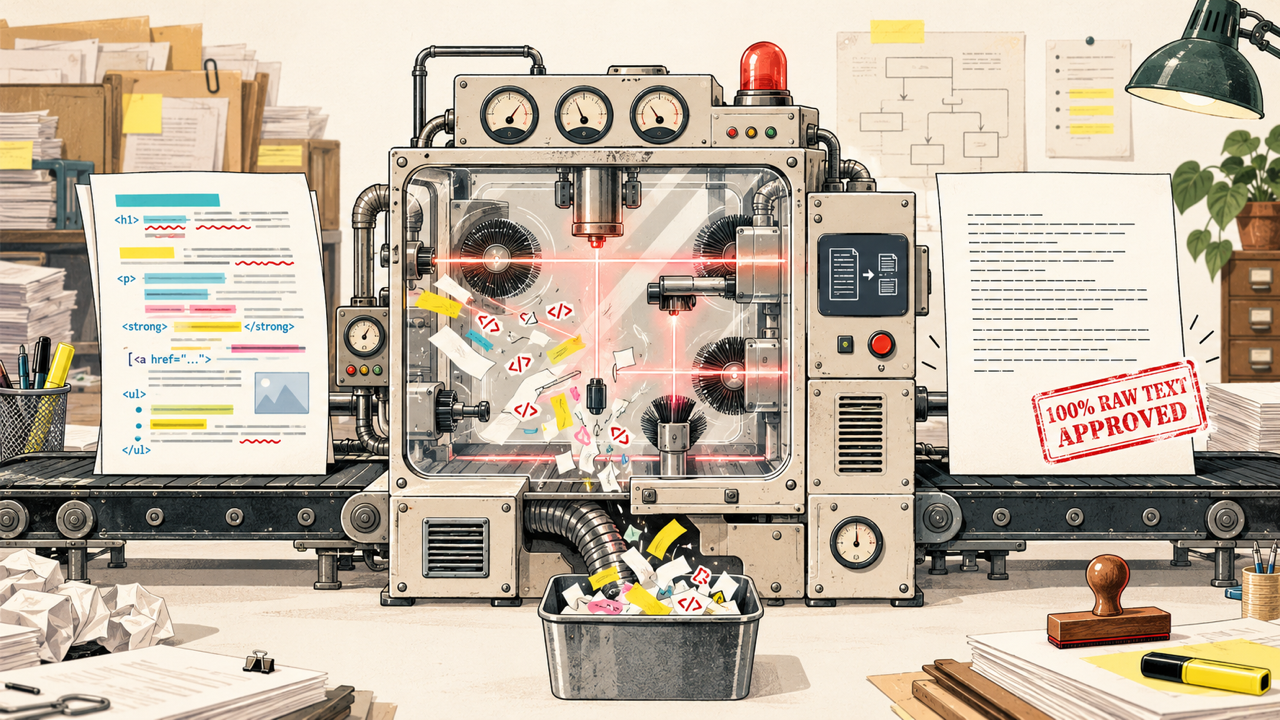
When you copy text from Word, Google Docs, Notion, or ChatGPT, you often bring along unwanted styling tags, font overrides, and hidden control characters. Format Remover cleans your text right in your browser so you get clean, predictable plain text every time.
Runs 100% in Your Browser
Your text never leaves your device. Everything runs in local browser memory with no cloud upload, making it completely safe for private drafts, contracts, and internal documents.

Preserves Paragraphs & Structure
Unlike basic editors that flatten everything into one unreadable wall of text, Format Remover keeps your paragraphs, indentations, and lists while stripping out styling noise.

AI & Hidden Character Cleanup
Removes markdown syntax (bold asterisks, code backticks) and invisible zero-width characters (ZWSP, NBSP) that break CMS layouts, spreadsheet formulas, and database imports.
How to Remove Formatting from Text
Four steps to remove formatting from any text in about ten seconds — and your paragraphs stay intact.
- STEP 01

Paste your text
Copy from Word, Google Docs, a web page, an email or ChatGPT and paste into the left pane. Rich-text paste is converted automatically.
- STEP 02

Choose your settings
The defaults already remove fonts, styles, HTML and stray spaces while keeping paragraphs. Flip a quick chip or open All settings for 23 granular toggles.
- STEP 03
Clean and review
Click Clean text — your original stays on the left, the clean result appears on the right with counts showing exactly what changed.
- STEP 04

Copy or download
Click Copy (or use the mobile copy bar) and paste clean plain text anywhere. Or download it as a .txt file.
What This Tool Removes
See exactly what gets stripped when you remove formatting from pasted text — grouped the same way as the settings panel.
Formatting layer
Fonts, colors, sizes and markup that ride along from Word, Docs and web pages.
- ✓HTML tags
Strips <p>, <div>, <b>, <span> and friends while keeping the words inside.
- ✓Inline styles
style="…" font, color and size declarations never survive the trip.
- ✓Class & id attributes
Word’s class="MsoNormal" and other attribute leftovers.
- ✓Links (text kept)
Hyperlinks become plain text — no blue, no underline, no URL.
- ✓Word & Docs junk
Conditional comments, <o:p> wrappers, hidden style blocks and entities.

Whitespace & line breaks
The spacing debris that makes pasted text look broken.
- ✓Extra spaces
Runs of spaces collapse to one.
- ✓Tabs
Tabs become single spaces so columns stop drifting.
- ✓Line-end spaces
Invisible trailing spaces at the end of every line.
- ✓Empty lines
Blank-line runs that push paragraphs apart.
- ✓All line breaks
Optional: flatten everything to a single line (off by default).

Characters
Typographic characters that break forms, code and spreadsheets.
- ✓Smart quotes
Curly “ ” ‘ ’ become straight ' ".
- ✓Em & en dashes
— and – become plain hyphens.
- ✓Ellipsis
… becomes three dots.
- ✓Accents
café becomes cafe when you need pure ASCII.
- ✓Emoji
All emoji incl. ZWJ sequences; © ® ™ survive.
- ✓Punctuation
Optional strip of . , ! ? and friends — off by default.
AI output
The invisible artifacts ChatGPT and friends leave in copied text.
- ✓Zero-width characters
ZWSP/ZWNJ/ZWJ that break search, diff and code tools.
- ✓Non-breaking spaces
NBSP becomes a normal space so words wrap normally.
- ✓Markdown markers
**bold**, *italic*, # headings and `code` syntax.
- ✓Homoglyphs
Cyrillic/Greek lookalike letters normalized to Latin.
- ✓Invisible characters
BOM, soft hyphens, bidi marks and control characters.
Why Your Text Keeps Its Formatting
Copy doesn’t copy text — it copies a small web page. Here’s what’s actually on your clipboard.

The rich-text clipboard
When you copy from Word, Google Docs or a browser, the clipboard holds both plain text and an HTML version. Apps paste the HTML by default — which is why fonts, colors and links follow you everywhere.

Word’s MsoNormal baggage
Microsoft Word exports its own class names (MsoNormal), conditional comments and <o:p> wrapper tags into that HTML. You never see them — until they blow up a CMS layout or break a mail merge.

The problem
Word and many web editors glue words together with non-breaking spaces ( , U+00A0). They look like spaces but behave like characters — breaking word counts, spreadsheet splits and search.

Inline styles everywhere
Web editors wrap every paragraph in style="…" declarations. Pasting into another editor layers conflicting styles — and “Paste without formatting” sometimes isn’t offered at all.
Format Remover processes all of this locally in your browser — your text never leaves the page.
Who Uses a Format Remover
One tool, six daily paper cuts it removes.

CMS editors & bloggers
Paste clean text into WordPress, Ghost, Notion, Webflow or Shopify without re-fixing fonts, links and spacing for five minutes.

Spreadsheets & data
Clean cells, CSVs and imports — kill NBSP, smart quotes and stray line breaks that corrupt formulas and splits.

Email & newsletters
Strip Word/Docs formatting before pasting into Mailchimp or your CRM so templates stop mangling the layout.

Support & CRM notes
Log ticket replies and customer notes as uniform plain text instead of mixed fonts from three different sources.

AI output cleanup
Turn ChatGPT/Claude answers with markdown artifacts and hidden characters into clean, pasteable text.

Students & academics
Turn copied quotes and citations from course readers, journals, and articles into clean plain text for essays and notes — without messy fonts or broken line wraps.
Frequently asked questions
Straight answers about how to remove formatting from text.
Format Remover, One Paste Away
Next time Word, Google Docs, email or ChatGPT hands you styled text, paste it here to remove formatting in one click — free, no sign-up, and your text never leaves your browser.